
Parent Guide: Logging in to Arbor
Arbor is our online parent portal, where you can keep up to date with your child's school life.
You can use Arbor on a computer, tablet or mobile phone.
You do not need an activation code/welcome email from the school, please use the guide below
Logging in for the first time
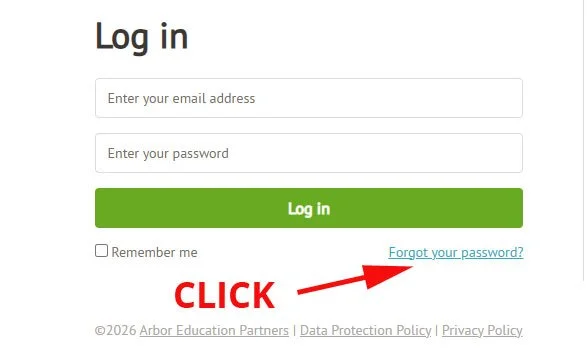
Step 1: Go to the Arbor Login Page https://login.arbor.sc/
Click the Forgot Password Link (Even if you haven’t logged in before)
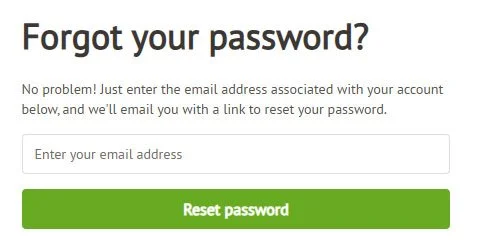
Step 2: Enter your email
Enter your email (That the school holds for you) and Click Reset.
Step 3: Log in
Open your email and Click on the link given.
Set a new password then you are ready to login!
You may be asked to confirm your child's date of birth the first time you log in.
Logging in again
Once you have set up your account, you can log in at any time:
Visit Arbor Login or open the Arbor Parent App.
Enter your email address and password.
Click Log in.
Using the Arbor Parent App
You can also access Arbor on your mobile phone by downloading the free Arbor Parent & Guardian Portal app from the Apple App Store or Google Play Store.
Use the same email address and password as your online account.
Forgotten your password?
If you have forgotten your password:
Go to the Arbor login page.
Click Forgotten your password?
Enter your email address and follow the instructions sent to your inbox.
Need help?
If you can’t login AFTER USING THE FORGOTTEN PASSWORD OPTION, or cannot see your child on Arbor, please contact the school office. We will be happy to help.
Please make sure you use the email address that school has on record for you.